Stop Downloading Big Google Drive Folders in Your Browser
Browser downloads of a 20 GB+ Drive folder are slow and fragile. Here's how to do it with rclone and your own Google OAuth client: resumable, verified file by file, and unzipped without overwriting anything. Includes a one-click Claude Code prompt.
siddaram metri · · 10 min read · 5 views
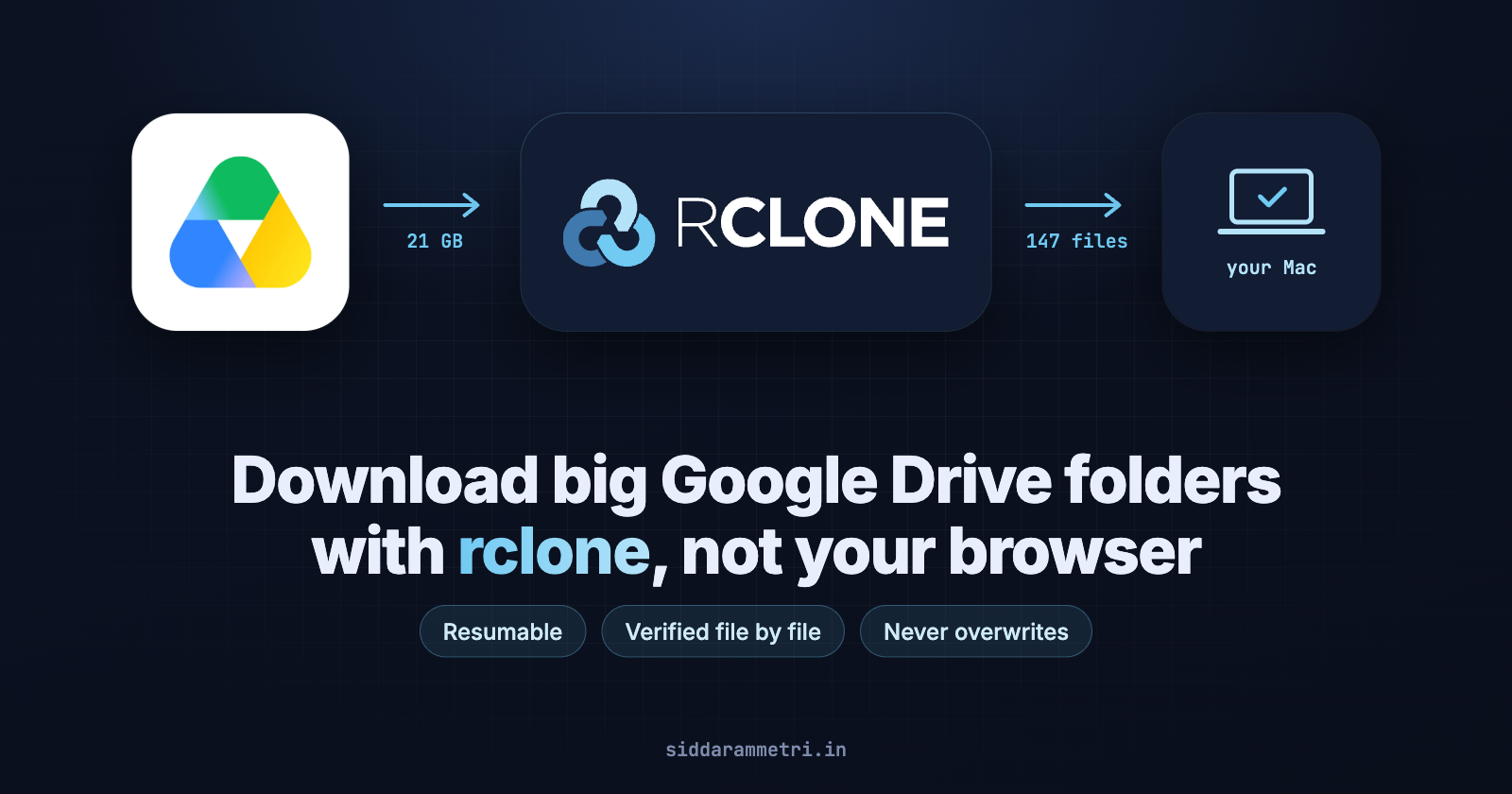
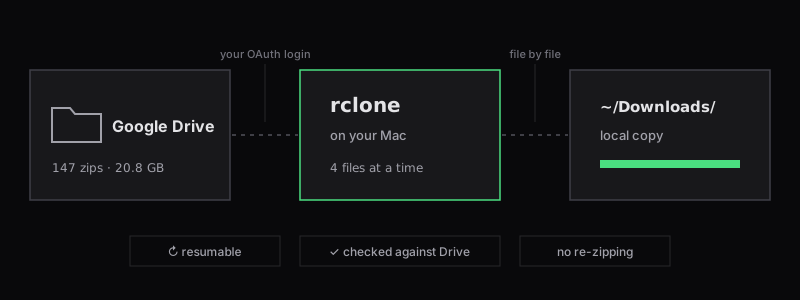
I needed to move a Google Drive backup onto a new laptop: 147 zip files, about 21 GB. Clicking "Download" in the browser is the obvious move, and for a folder this size it is the wrong one. This post shows the approach that worked first time: rclone, a free command-line tool, connected to Drive through your own Google OAuth client. The whole folder came down in about 12 minutes, was checked file by file against Drive, and was unzipped without overwriting anything already on the laptop.
Everything here is copy-and-paste. If you use Claude Code, click Copy Claude Code prompt (on the right, or under the title on mobile) and paste it in: it does the whole thing for you, with a progress update every minute.
Why not just click Download?
When you download a folder from the Drive website, Google first re-packs it into zip files of about 2 GB each. With a folder of zips you end up with zips inside zips. Worse, if your connection drops at 87%, that part starts again from zero, and there's no easy way to check that everything arrived intact.
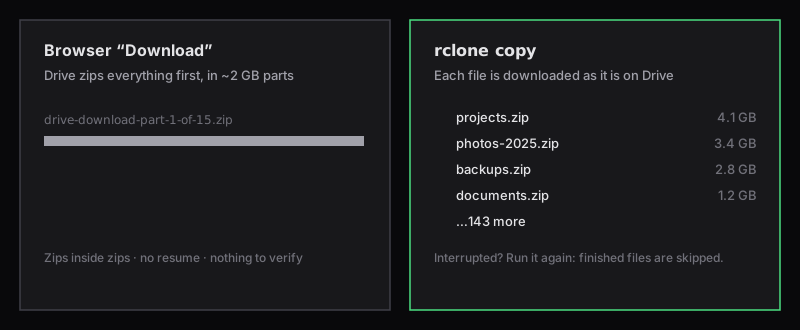
rclone talks to the Drive API directly:
- File by file. You get the same files that are on Drive, with no re-zipping.
- Resumable. Run the same command again and it skips everything already downloaded.
- Verifiable.
rclone checkcompares every file with Drive after the download. - Parallel. It downloads several files at once. I averaged about 33 MB/s.
What you need
- A Mac with Homebrew. Linux and Windows work too; only the install command differs.
- Access to the Drive folder in your browser.
- Enough free disk space, roughly 2–3× the folder size if you'll unzip it. Check with:
df -h ~
Step 1: Install rclone
brew install rclone
rclone version
It's an 86 MB install, and that's all you need locally.
Step 2: Create your own Google OAuth client (recommended)
rclone has a built-in Google login that works out of the box. Everyone uses it, though, so Google often rate-limits it, which shows up as 403 rateLimitExceeded errors and slow speeds. Your own client avoids that. It's free, takes about 10 minutes, and you only do it once.
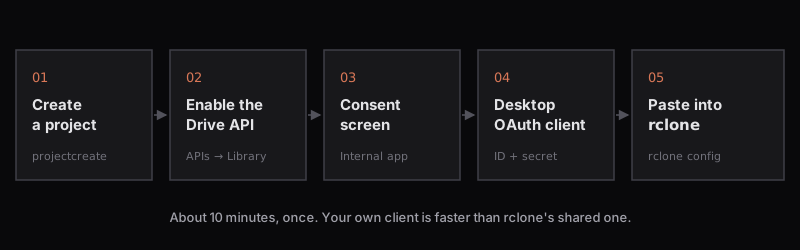
Sign in with the Google account that can see the folder, then follow these links in order:
- Create a project: console.cloud.google.com/projectcreate. Name it something like
rclone-download, click Create, and make sure it's selected in the top bar. - Enable the Google Drive API: console.cloud.google.com/apis/library/drive.googleapis.com, then click Enable.
- Set up the consent screen: console.cloud.google.com/auth/overview, then Get started. Enter an app name (
rclone) and your email.- On a company Google Workspace account, choose Internal. That's the simplest option.
- On a personal account, choose External, then add your own email as a test user under Audience.
- Create the client: console.cloud.google.com/auth/clients/create. Set the type to Desktop app and the name to
rclone, then click Create. Copy the Client ID and Client secret.
If your company blocks creating Google Cloud projects, skip this step and leave the client ID and secret blank in step 3. rclone's built-in login still works, just more slowly.
Step 3: Connect rclone to Google Drive
A single command creates the connection (rclone calls it a remote) and opens your browser to sign in:
rclone config create gdrive drive \
  client_id=YOUR_CLIENT_ID.apps.googleusercontent.com \
  client_secret=YOUR_CLIENT_SECRET \
  scope=drive.readonly
Sign in, then click Allow. If Google warns that it "hasn't verified this app", click Continue. It's your own app.
Use scope=drive.readonly if you only need to download. rclone then can't change or delete anything in your Drive, even by accident. Use scope=drive only if you also plan to upload.
Prefer menus? Run
rclone config, choosenfor a new remote, name itgdrive, pickdrive, paste the ID and secret, and accept the defaults.
Step 4: Look before you download
Take the folder ID from the Drive link, which is the part after /folders/:
https://drive.google.com/drive/folders/1AbCdEfGhIjKlMnOpQrStUvWxYz012345
                                       └──────────── folder ID ────────────┘
Then check what's inside without downloading anything:
FOLDER_ID=1AbCdEfGhIjKlMnOpQrStUvWxYz012345

rclone size gdrive: --drive-root-folder-id $FOLDER_ID   # file count + total size
rclone lsf  gdrive: --drive-root-folder-id $FOLDER_ID   # top-level contents
This step paid off. A second link I had been sent contained the first folder as a subfolder, with the same Drive ID. Spotting that here saved downloading the same 21 GB twice.
Step 5: Download
mkdir -p ~/Downloads/drive-data

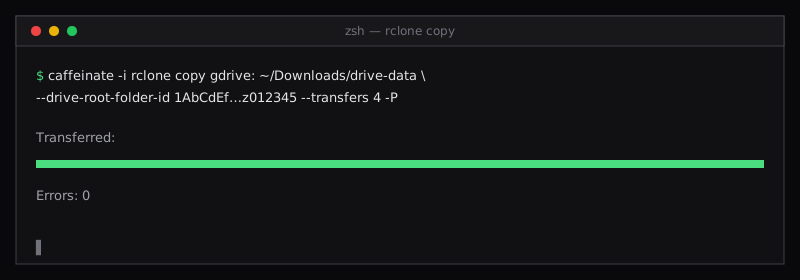
caffeinate -i rclone copy gdrive: ~/Downloads/drive-data \
  --drive-root-folder-id $FOLDER_ID \
  --transfers 4 -P
| Part | What it does |
|---|---|
caffeinate -i | Keeps your Mac awake until the command finishes (macOS only) |
rclone copy | Copies new and changed files and never deletes anything locally |
gdrive: | The remote you created in step 3 |
--drive-root-folder-id | Starts from your folder instead of the top of "My Drive" |
--transfers 4 | Downloads 4 files at the same time |
-P | Shows live progress |
If it stops partway because of Wi-Fi, sleep or a closed lid, run exactly the same command again. Finished files are skipped.
To keep a log file and run it in the background instead, swap -P for:
--stats 30s --stats-one-line --log-file ~/Downloads/drive-data.log --log-level INFO
Step 6: Verify every file
rclone check gdrive: ~/Downloads/drive-data \
  --drive-root-folder-id $FOLDER_ID --one-way
You want to see 0 differences found. This compares sizes and checksums with Drive. It doesn't download anything again.
Step 7: Unzip without overwriting anything
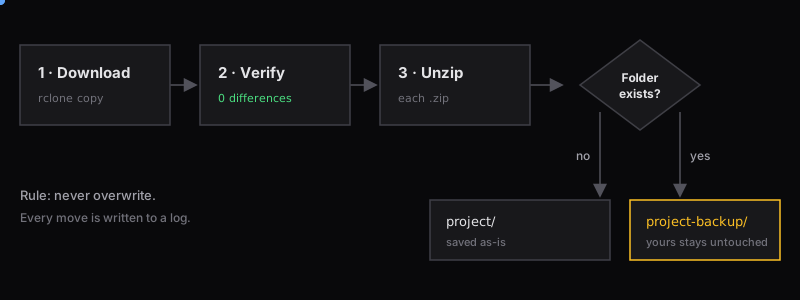
If the folder is full of zips and some of those projects already exist on your laptop, don't unzip straight over them. My rule was simple: never overwrite. If a folder already exists, the copy from Drive gets a -backup suffix instead.
#!/bin/bash
# Unzip every zip in SRC into DEST. Never overwrites: clashes become name-backup, name-backup-2, ...
SRC=~/Downloads/drive-data
DEST=~/Documents/Restored
mkdir -p "$DEST"

free_path() {           # first unused path: name, name-backup, name-backup-2, ...
  local p="$1/$2" i=2
  [ -e "$p" ] || { echo "$p"; return; }
  p="$1/$2-backup"
  while [ -e "$p" ]; do p="$1/$2-backup-$i"; i=$((i+1)); done
  echo "$p"
}

for zip in "$SRC"/*.zip; do
  tmp=$(mktemp -d)
  unzip -q "$zip" -x '__MACOSX/*' -d "$tmp" || ditto -x -k "$zip" "$tmp"
  for item in "$tmp"/*; do
    target=$(free_path "$DEST" "$(basename "$item")")
    mv "$item" "$target"
    echo "$(basename "$zip") -> $target" >> "$DEST/_restore-log.txt"
  done
  rmdir "$tmp"
done
Save it as restore.sh, set SRC and DEST, and run bash restore.sh. Keep the zips until you've opened a few projects and confirmed they look right. Then delete them to get the space back.
Restored a JavaScript project? Backups almost never include node_modules, so the first npm run dev fails with next: command not found. Run npm install (or bun install) once in each project.
Troubleshooting
| You see | Fix |
|---|---|
403 rateLimitExceeded, slow speed | Use your own client ID (step 2). rclone retries on its own. |
token expired / invalid_grant | rclone config reconnect gdrive: and sign in again |
| "Google hasn't verified this app" | Click Continue. It's your own client. |
rclone lsf shows nothing | The ID is wrong, or the folder is shared with another account than the one you signed in with |
| You can't create a Cloud project | Your company blocks it. Leave the client ID and secret blank. |
| The download keeps stopping | Your Mac is sleeping. Keep caffeinate -i at the front of the command. |
Clean up when you're done
Once the download is finished, remove access you no longer need:
- Delete the Cloud project: console.cloud.google.com/iam-admin/settings, select the project, then Shut down. This removes the client ID and secret too. Google keeps the project for 30 days, then deletes it.
- Revoke rclone's access: myaccount.google.com/connections, then your app, then Delete all connections.
- Delete the saved login on your Mac:
rclone config delete gdrive
rclone itself can stay installed. It's small, and next time you only need step 3 again.
A note for work accounts
On a company Google Workspace account, all of this is visible to your admins if they look. The Cloud project, the app you authorised and each file download are logged against your account, with the time and your IP address. Your Mac's name and the folder you saved to are not recorded. Downloading your own work files to your work laptop is ordinary activity, but if your company has rules about third-party apps, check them first.
Wrap-up
- rclone + your own OAuth client turns a fragile 21 GB browser download into one reliable command.
- Look first (
rclone size,rclone lsf), verify after (rclone check), and never overwrite when you unzip. - Clean up the access when you're done.
Or skip the typing: click Copy Claude Code prompt on the right, paste it into Claude Code with your link, and watch it work through each step.
Get new posts by email
One email when I publish something new. No spam, and you can unsubscribe in one click.