Build a Live Claude Code Status Line: Usage Bars, Reset Countdown and Session Info
Set up your terminal for Claude Code, then add a status line with live usage bars that change colour near your limits, a reset countdown and session info. One-command install, the design mistakes I made, and a one-click Claude Code prompt.
siddaram metri · · 8 min read · 1 view
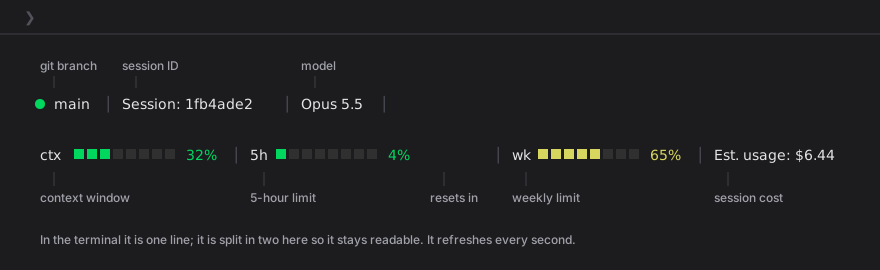
Claude Code can show a line of your choice at the bottom of the terminal, called the status line. Mine shows the git branch, session, model, and live bars for my context window, my 5-hour and weekly usage limits, plus a countdown to the next reset. The bars change colour as I get close to a limit, and the whole line updates every second.
This post covers both halves of the setup: the terminal (shortcuts that make typing prompts nicer) and the status line (how it works, a one-command install, and the design mistakes I made along the way). Short on time? Click Copy Claude Code prompt (on the right, or under the title on mobile) and paste it into Claude Code. It downloads the installer from this site, explains what it changes, and sets everything up.
Part 1: Set up the terminal
Run this inside Claude Code:
/terminal-setup
On macOS Terminal it changes three settings:
| Setting | What you get |
|---|---|
| Option+Enter adds a new line | Write multi-line prompts. Enter still sends. |
| Option is the Meta key | Word-jumping shortcuts work (below) |
| Audible bell off | No more beeps on an empty Backspace |
Restart Terminal afterwards.
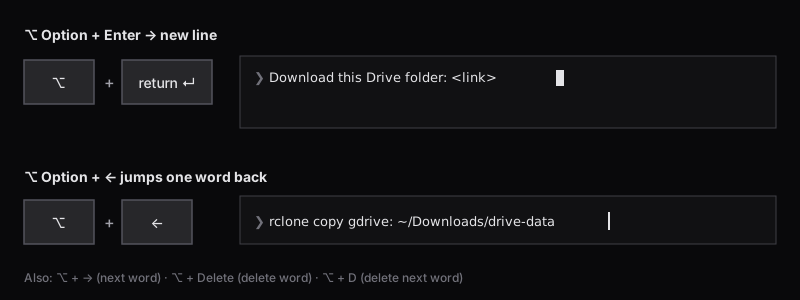
| Keys | Action |
|---|---|
⌥ + Enter | New line inside your message |
⌥ + ← / ⌥ + → | Jump back / forward one word |
⌥ + Delete | Delete the previous word |
⌥ + D | Delete the next word |
Trade-off: with Option as Meta, Option can no longer type characters like ©, € or ñ in Terminal. To get them back, turn it off in Terminal → Settings → Profiles → Keyboard → "Use Option as Meta key".
Built-in commands for usage
Before building anything, know what's already there:
| Command | Shows |
|---|---|
/usage | Your plan's 5-hour and weekly limits, and when they reset |
/context | How full the current conversation is |
/cost | Tokens and cost for this session |
/stats | Usage history: sessions, active days, models |
/status | Version, model, account |
These are snapshots you have to ask for. The status line keeps the important ones on screen all the time.
Part 2: How the status line works
The status line is an official Claude Code feature. You supply a command, and Claude Code runs it and shows whatever it prints:
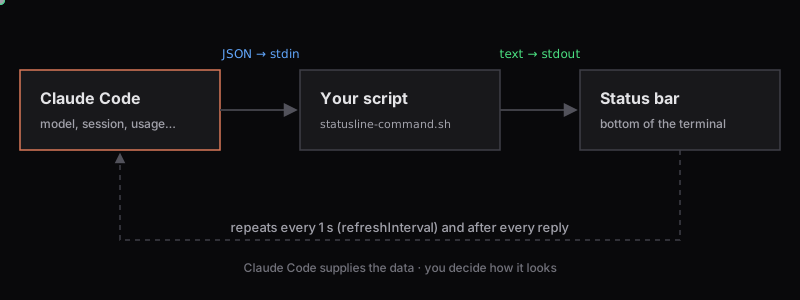
- Claude Code runs your script and sends it JSON on stdin with the session's details.
- Your script prints one line of text. ANSI colours are allowed.
- Claude Code shows that line at the bottom of the terminal.
- With
refreshInterval: 1set, this repeats every second, as well as after every reply.
The data is official. Only the look is yours. Trimmed down, the JSON looks like this:
{
  "session_id": "1fb4ade2-…",
  "model": { "display_name": "Opus 5.5" },
  "workspace": { "current_dir": "/Users/you/project" },
  "cost": { "total_cost_usd": 6.44 },
  "context_window": { "used_percentage": 32 },
  "rate_limits": {
    "five_hour": { "used_percentage": 4, "resets_at": 1792371600 },
    "seven_day": { "used_percentage": 65, "resets_at": 1792890000 }
  }
}
rate_limits is only sent when you sign in with a Claude.ai subscription (Pro, Max, Team…), and only after the first reply in a session. With an API key, Bedrock or Vertex there are no plan limits to show.
Quick install
The installer is one self-contained file. It writes the script, adds the statusLine setting (backing up settings.json first and keeping your other settings), then prints a preview:
curl -fsSL https://siddarammetri.in/blog/claude-code-status-line/install.sh \
  -o /tmp/statusline-install.sh
less /tmp/statusline-install.sh   # read it first (q to quit)
bash /tmp/statusline-install.sh
It doesn't touch your terminal, fonts or shell config. To undo it, restore the settings.json.bak-… file it prints.
Design decisions (and mistakes)
Colours that mean something
One colour for everything tells you nothing. Each bar now changes colour at four points:
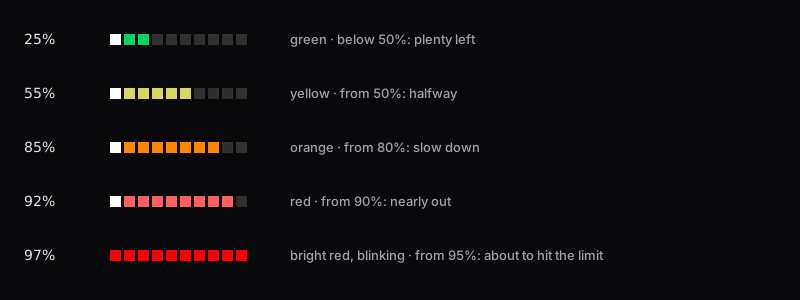
| Usage | Colour | Meaning |
|---|---|---|
| below 50% | green | Plenty left |
| 50–79% | yellow | Halfway |
| 80–89% | orange | Slow down |
| 90–94% | red | Nearly out |
| 95%+ | bright red, blinking | About to hit the limit |
Each bar is coloured on its own, so a green context bar can sit next to a yellow weekly bar.
The bar character matters more than you'd think
My first version used full blocks (█), which were far too chunky. The thin line ━ disappeared. Then I tried the lower ¾ block ▆, and it looked wrong without me knowing why: the bars seemed to sit lower than the text.
That's exactly what was happening. Block characters are anchored to the bottom of the character cell, so ▆ hangs below the baseline. A square ■ is centred in the cell and lines up with the letters.
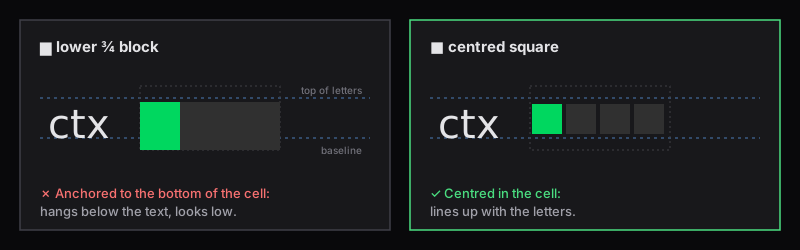
I found this by rendering each candidate character next to text in the same font and comparing them, rather than guessing. And one rule: don't change your terminal font to make a status line look right. Fix the characters instead.
Numbers that don't make the line jump
4% is narrower than 19%, so everything after it shifted sideways whenever a value crossed 10%. Padding every number to three characters (printf '%3s') keeps every separator in a fixed place.
Animation with one frame per second
A shell script can't animate on its own, but with refreshInterval: 1 each run is a frame. The script works out the current second (date +%s) and uses it to:
- move a lighter "shine" square across each bar,
- pulse the leading square, so even a 1-square bar visibly moves,
- blink the whole bar from 95%,
- pulse the
●dot.
What's live, and what updates per reply
| Updates every second | Updates after each reply |
|---|---|
↻ reset countdown (your clock vs. the reset time) | 5-hour and weekly % |
| Animation (shine, pulse, blink) | Context % |
| Git branch | Estimated cost |
Usage numbers come from Anthropic's servers with each reply. If you use Claude somewhere else (claude.ai, another terminal), this line catches up on your next message. For an up-to-the-minute number, run /usage.
Troubleshooting
| Problem | Fix |
|---|---|
| Nothing appears | Run the installer again and check the preview line it prints. Check settings.json is valid JSON (jq . ~/.claude/settings.json). |
| Bars missing at first | Normal. They appear after the first reply. |
5h / wk never appear | You're on an API key, Bedrock or Vertex, so there are no plan limits to show |
| Squares look misaligned or gappy | Font-dependent. Try ▬ or ▄ in the bar() function, and keep your font. |
| Line too long for your window | Lower BAR_WIDTH, or remove the Session: segment |
Wrap-up
/terminal-setupmakes typing long prompts comfortable.- The status line is an official hook: Claude Code sends JSON, your script prints a line.
refreshInterval: 1makes it live: countdown, colours and animation.- Pick characters that line up, and keep numbers fixed-width.
Click Copy Claude Code prompt on the right to have it installed and tested in a minute, then adjust the colours to taste.